Monday, 17 September 2012

Intel Ultimate Coder Challenge - Part Five

Welcome back to my penultimate chapter which chronicles the adventures of writing an Ultrabook app in just six weeks. Last time you saw more of the app design and some of the sensor additions, and I expect you are looking forward to more of the same. Well all developers need to blow off steam, and this blog covers some of that too.


Lee Bamber at the EXPO, wearing his coveted Exhibitor badge

All six developers competing were given the previous week off to attend IDF 2012, and to participate in some of the events. My calendar was particularly busy hosting two live coding events in the decompression lounge, manning the Ultrabook stand in the Expo area three times, sitting on a beanbag for a few hours with Tom and the HTML5 Hackathon students, attending an Intel fellowship and Ultimate coder get together, and of course, attending the Black Belt dinner where I gave a short speech which I hope was at the very least entertaining. One day and 20 hours of travelling later, I was back in the UK, ready to continue my coding quest.

Two Weeks Left

Despite not posting a blog last Monday some progress had been made by then, primarily to get our live demo of Love Hearts ready for IDF. I also made a short video of the demo, just in case my Ultrabook exploded en-route:


For the IDF 2012 demo, I managed to coax the following out of the Ultrabook:

DirectX for 2D/3D performance
Accelerometer used by Clouds
Light Sensor for Night Time Mode
Swipe Gesture for Touch Interface
Keyboard for Messaging
Multi-finger for Image Rotate & Resize
Notification for New App Events
NFC for Free Love Credits
Compass in Main Screen
Geo-location in default Message

I discovered a driver issue with the accelerometer, light sensor and geolocation, but nothing that prevented the live demo during the event, and on the whole the Ultrabook performed admirably under event conditions.

Notification in Windows 8

To prevent this blog turning into an IDF report, I wanted to single out one of the technical hurdles defeated in order to prepare the final IDF demo, and unique to developers of Ultrabook apps. Windows 8 offers app developers the opportunity to modify the tile that represents their app that appears in the main tile page. In the Windows API, you will find it in the Notification section.

I wanted my app to change the tile icon if my app wanted to alert the user of a pending action (such as an untapped feature or a message had arrived). Rather than write all the code from scratch, I highly recommend you seek out an example that includes the 'NotificationsExtensions' project. This project includes a whole slew of helper functions that allows you to change the tile icon with just a few commands:

auto tileContent = TileContentFactory::CreateTileSquareImage();
tileContent->Image->Src = "ms-appx:///Assets/LogoNotify.png";
tileContent->Image->Alt = "Love";
TileUpdateManager::CreateTileUpdaterForApplication()->Update(tileContent->CreateNotification());

As you can see, the code is almost self-explanatory at this level and means you can carry on with more important features. I used this code as part of the AGK / Freedom-Engine command called SetNotificationImage which simply changes the icon by passing in the new image index.

The 'NotificationsExtensions' project goes on to allow a whole host of additional functions to create double wide tiles, additional text notifications and all manner of hooks into the Windows 8 notification system. Given the present deadline, these wonderful calls will have to wait for another app.

New Feature Ahoy

During the IDF event, I learned a few more tricks Windows 8 and the Ultrabook could do including a swipe from the right which would call up a button called ‘Share’, which when selected would list all the apps I could export to.  

Discovering the Ultrabook - The all new 'share' feature for apps

That is, any apps installed which are compatible with Love Hearts would be listed and allow me to send ‘media’ to that app. It also occurred to me that an app such as an Art Package could send the image directly to Love Hearts and forwarded as a message. This feature was added to my ‘must learn more’ list with the hope I can squeeze it into the app before my deadline.

Meanwhile, back in England

Approximately, half an orbit away, my backup coder Steve was busy in a darkened room adding wonderful new things to the app.  He started the cupid mini-game which will form part of the ‘Play Games’ feature within the app. Work also started on the innards of the messaging system:
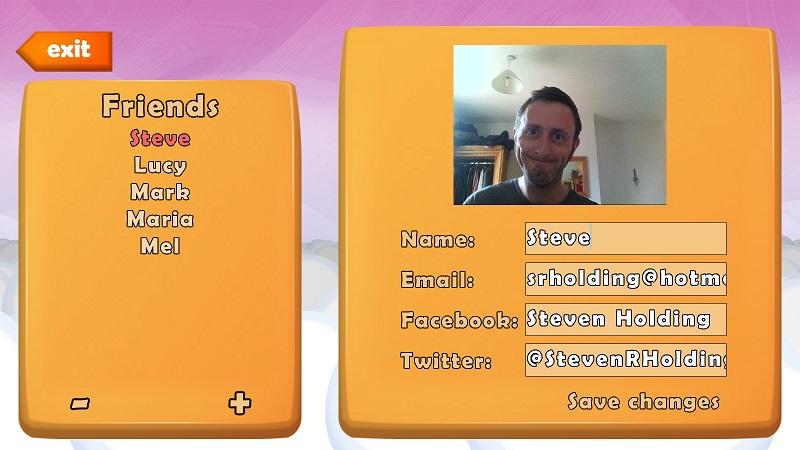

Keep track of your friends in the Love Hearts app

The messaging code which both sends and receives messages between apps, with new functional and visual elements integrated to keep the ball rolling. A particularly difficult issue was encountered whilst attempting to send images to the server, but was quickly overcome and the latest version of the app can now send and receive image messages between two Love Heart apps.

Development Items Remaining

With less than two weeks to go, it was time to itemise the tasks left to do. Clearly, we needed to complete the integration of the graphics, removing the last of the place holder artwork, and we also needed to integrate the monetisation component that would allow in-app purchasing within the Windows 8 Store. A particularly neat trick when you consider that Windows 8 Store does not have an in-app purchasing API. We also had a few loose ends to tie off such as adding 3D shader and engine code plus optimising the DirectX code to run smoothly on the Ultrabook.

The goal for the competition is a deliverable that will install and run on the judges Ultrabook devices. Getting the app submitted and available on the Windows 8 Store is unlikely given the validation time required by Microsoft. It is also unclear if submitting the ‘former-Metro’ package will also succeed given the issues discovered at IDF when moving from one version of Windows to another.

INSIDER TIP: A Windows 8 app package created in ‘Windows beta preview’ will likely not work in ‘Windows RTM’ when sharing a developer licensed version of that app. As this is largely undocumented, I highly recommend upgrading to Windows RTM for the sanity of your end users.

Freedom for Everyone

As an aside, I am pleased to report the launch of the Freedom Engine went very well (www.freedom-engine.com), and even provoked disbelief among IDF attendees.

We also snatched some time with Bob Duffy, who kindly agreed to interview me about the Ultrabook app, IDF and Freedom Engine. Looking back at the video, I think I was on my fifth cup of coffee. Until technology exists to dial down the insane grin on my face, you'll have to take me as is:


During the IDF HTML5 Hackathon, I also learned how to tap the Ultrabook sensors from a browser using Javascript and a Chrome extension, which means we now have a method of bringing Ultrabook sensors to the browser via Freedom Engine. Visit the website above for more details!

Ultrabook at the Airport

Over the course of this competition, I have really subjected the Ultrabook to some extreme tasks. Not only from the inside by pushing WinRT as far as it can go, but also from a users perspective by deciding to code the entire engine from the Ultrabook itself. This was taken yet further on my way back from San Francisco when I broke out the Ultrabook at an Airport cafe, activated my 3G hub and carried on coding as though I was back at home.


On re-reading my blog before I click 'Publish', I got the sense the connection between Freedom Engine and the Love Hearts app might not be clear. The connection is that Love Hearts is written in AGK, which is really Freedom Engine by another name. The upshot is that when Love Hearts is finished, and running nicely on the Ultrabook, it will also instantly become available for all the other supported platforms such as HTML5 and Android. This means Love Heart app users can exchange messages and play games, irrespective of which device they are on at the time. Cross-platform development is no longer optional!


More Information

For more information about the Ultimate Challenge, check out the official website at:http://software.intel.com/sites/campaigns/ultimatecoder/


Next Time

Plenty of development and a good deal of research still to come. With IDF obligations complete, I can close all the windows and doors, make an especially large pot of tea, and focus my blunderbuss mind entirely on the mission.  The next time you read my blog, you should be reading about an app that looks and plays like the real thing.

I also want to extend a special hello to the Ultimate Coder contestants and judges who I met at IDF during our fifteen course Pizza meal.
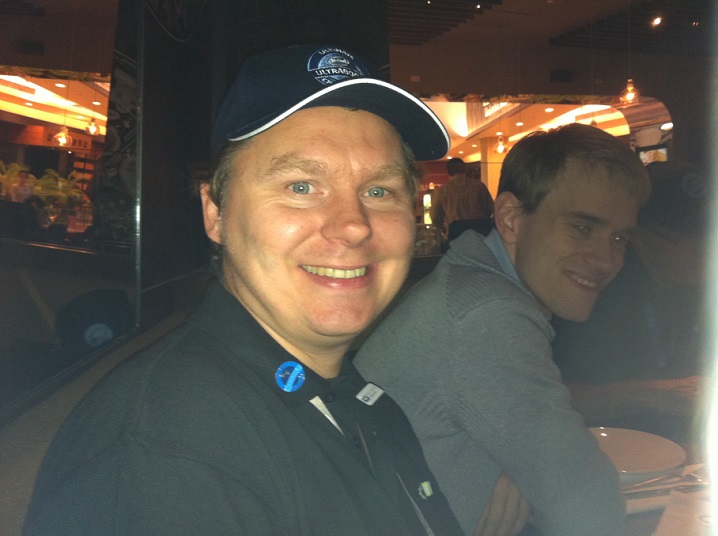

Lee and Andreas at the 'Death by Pizza' restaurant
Had it not been for the Guinness washing it down, I don't think I would have survived all that pizza. As our industry is such a small place, I very much look forward to meeting you all again and hope everyone had a pleasant journey home.


Monday, 3 September 2012

Intel Ultimate Coder Challenge - Part Four


The Week That Was

If you recall, last week I promised you more progress on the Love Hearts® app itself, new artwork and lots of new DirectX and sensor features for the new AGK WinRT engine. I am pleased to report that I can deliver on all of the above. Let me first apologise for the technical onslaught from Week 3, an unfortunate by-product of getting too close to a coder at boiling-point. As a cure, here is a video intro which involves a little less reading.


And for those who like to read, here is another huge blog, with lots of juicy details and lots more videos.

The Week That Is

This week I would like to show you rather than tell you what I’ve been up to on the project, and have decided to use copious amounts of video to do this. I decided to record a typical morning, preparing for Ultrabook development, before playing it back 64 times faster.


During the afternoon, we see the current state of the Love Hearts® app, complete with some final artwork and more content.


Before you recoil from shock, let me qualify the video by saying it was running in Windows 8 Native Desktop mode using the legacy AGK engine. I just wanted to show you what it’s going to look like running on the Ultrabook when it’s finally running under the new WinRT engine.

The new Windows 8 engine made some huge strides this week, coupling up more OpenGL functions and matching them to the DirectX 11 API. I created an intermediate layer between OpenGL and DirectX which converted regular C++ data into C++/CX references, and stored some internal values which OpenGL relies on to perform it’s chain of instructions. Unlike DirectX, OpenGL sets states which later OpenGL calls rely on, so this had to be mimicked using the new intermediate layer. Bottom line is that we now have our DFNAM engine rendering the exact same pixels as the native OpenGL engine. I also took the opportunity to code the Accelerometer, Multi-touch and half the NFC sensor commands as well.


NFC Ultrabook and Nexus 7 Trick: To get your devices talking to each other, place the Nexus 7 tablet with its back touching the touchpad of the Ultrabook, aligned so that the top of the Nexus 7 is on line with the top of the touchpad.

I can’t describe the buzz I got when I first got the NFC connection working; it was one of those defining moments which slowly shape the technological landscape. I must admit it took me a while to find the aerial for the Ultrabook and the Nexus 7, but after a few Google videos and lots of device foreplay, I found the perfect spot as you can see in the above video.

When the time comes to integrate these cool toys into the main app, one of the overriding factors in making a successful Ultrabook app is the user experience. All the features in the world won’t make a killer app, but a single feature done well can transform a regular app into a leading app.

We must not confuse the Ultrabook with a laptop, a tablet or a small desktop. Users who buy an Ultrabook want the keyboard, the hands-free touch capabilities, the performance and the gadgets, and they want apps that respect their choice of hardware. I was inspired by a fellow contestant’s feature list and decided to make my own to see how each feature lends itself to the Love Hearts® usage scenario of the ideal Ultrabook user.


Completed Tasks

  • Multiple Resolutions: App adjusts layout to fit any landscape resolution
  • Mouse, Track-pad & Touch-screen: Accept all three input styles
  • Single & Multi-Touch: Two finger moving & resizing of message art
  • Rich Graphics: Use high resolution artwork for HD rendering
  • 3D Graphics Performance: Engine uses GPU rendering for 2D & 3D
  • Enhanced Performance: Engine uses PPL for parallel multi-core coding
  • DFNAM: 100% WinRT engine (native code is old code)
  • NFC Kiss: Touch Love Heart apps together to get extra credits for both
  • Accelerometer: - Control a mini-game using forward tilt only


Pending Features
  • iSCT (Always On): Retrieve love messages in background (if connected)
  • Push Notification: Display notification on tile page (if connected)
  • Power Management: Screen rendering freezes after 30 seconds idle
  • iRST (Rapid Start): Cache resources on suspend so can resume quickly
  • Geo-location: All messages stamped with the City they were created
  • Compass: Controls on-screen compass and position of sun
  • Orientation Sensor: Shift clouds so horizon always horizontal
  • Gyro: Spin packet when detect sufficient angular velocity
  • Light Sensor: When in dark room, lower rendering brightness
  • Inclinometer: A mini-game controls first-person flying love catcher

The Last Mile

As you can see from the list above, there appears to be a lot of red but having tackled the big learning curves of WinRT and C++\CX, the last six items can be done in just a few days thanks to a greatly improved Windows API. The middle four; IRST, POWER, PUSH and ISCT are virgin lands to me right now, and promise much agony and elation in equal measure in the weeks to come.

A Cry for Freedom

I have not mentioned my work role before, but at The Game Creators (www.thegamecreators.com) I am best described as the Lead Developer, which means I have a finger in most of the pies spinning at any one time. The lead developer does not have the luxury of working on just one project, and right now I am working on two. The Ultimate Coder Challenge is one of them, and the other project is Freedom Engine.


Simply put, we take our cross-platform technology App Game Kit and make it work entirely in the cloud. We add a browser based IDE and compiler, create an HTML5 WebGL engine to run the apps online and we keep backwards compatibility with AGK so the same app can run on iOS, Android, Windows, Mac, Playbook & Bada. With the Ultrabook work, we’re adding Windows 8 to the supported platforms not to mention an eclectic cacophony of new commands.

For the video, best you visit the official launch site
www.freedom-engine.com

Ten years ago, The Game Creators owned a considerable chunk of the ‘hobby developer’ market with the likes of DarkBASIC, FPS Creator and 3D Gamemaker but the competition today is strong and mature. Instead of competing head to head, we decided to make a paradigm shift in thinking and come up with a whole new way for developers to create and distribute apps. 

A solution that fits with the way we prefer to work, and targets all devices in the compute continuum. With Freedom Engine, your Ultrabook turns into a fully featured cross-platform development studio that offers instant access to every sensor and feature available through Windows 8.

Think of Freedom Engine as the GMAIL of app development, your code accessible from anywhere, apps than run on everything, free to use, fast and powerful. The best way to understand it is to try it, and we’ll be launching the public beta of this service on the 12th September during IDF. For updates on where I’ll be during IDF, follow my twitter feeds @leebambertgc

The Week That Will Be

The next few days will be something special in the calendar of your typical coder, stretching five days into ten days by way of a magical enchantment we like to call ‘a deadline’. I fly from jolly old England on the 10th September to arrive for cocktails, giggles and guffores at the annual Intel Developer Forum event in San Francisco. Before then, I have to finish a version of Love Hearts® to demo during the event, and also finish the Freedom Engine beta for public release on the 12th. I also have to prepare presentation materials and of course, pack my suitcase.


It’s been arranged that all bloggers can have a week off while IDF is in session and so all posts are moved to the following Monday. Even so, in true Harry Potter style, I will be blogging Week 4 and Three-Quarters throughout the IDF event so please do check back next Monday and I’ll find some time to blog something amusing.

More Information

For more information about the Ultimate Challenge, check out the official website at:http://software.intel.com/sites/campaigns/ultimatecoder/

Blog Bambermentry

For everyone who likes 40 hours of video, I decided to make a ‘week in the life’ time lapse video showing a week’s worth of coding. Shot entirely on the Ultrabook for over 40 hours of coding slog, I was a little concerned that I would melt the device, and have nothing to complete the last two weeks with.


Despite my fears, the Ultrabook was a capable work horse and had no problems keeping up with me during the marathon. Let’s hope it survives another long week of coding, a round trip to the states and curious developers poking at it.


Monday, 27 August 2012

Intel Ultimate Coder Challenge - Part Three


The Past

Welcome back to my six part expedition into the development of my feature-packed Ultrabook app called Love Hearts®. 


I hope you had a great week and that you’re ready to go spelunking into the very heart of my code. Last week we took a detailed look at the app design and the development set-up. You may recall my insidious plan (or is that; insane plan), to write my own OpenGL library to replace the one that’s not there on the platform formerly known as Metro.

The Present

This week we’ll be looking at the code, and shedding some light on the challenges you will face when developing for the Ultrabook.  You may recall the project is split into a high level app which we call Love Hearts® and a low level technology we call AGK (www.appgamekit.com). The low level code talks directly to the hardware through an API called WinRT, and for coders who have thousands of lines written for Win32, the journey is far from smooth.

Removing “Windows.h”

The first thing you will notice after creating a blank Visual Studio C++ project for WinRT is that there is no place for “Windows.h” and will actually fail to compile if you try to include it.  Instead you need to pick out the individual C runtime’s you are actually using, and there can be quite a few if your legacy Win32 code base is large. Hours into my conversion, my own header code looked like this:

/// #include “windows.h”
#include “memory.h” // memset
#include “string.h” // strcpy
#include “wtypesbase.h” // DWORD

The list goes on but you get the idea. When you compile under WinRT, your legacy code will have a lot of complains without “Windows.h”.

My first attempt to compile my engine in WinRT

Removing Old APIs

Once you’ve dealt with the basic house-keeping code, you’ll start to stray into more exotic API usage, such as HttpConnect, Threads, Locks, Sound, File and so forth. None of these exist untouched in the new WinRT universe, and new APIs replace each one. With patience, you will be able to find like for like replacement functions for all of them with simple searches on Google. If you are porting your code over however, I highly recommend you use #IFDEF WINRT #ENDIF or platform specific files when you replace legacy code to retain your ability to build standard Win32 applications.

During my engine conversion, I decided to skip porting the ancillary features such as network, sound, sockets and files and jump straight in at the deep end with the OpenGL library.

Amongst the errors, OpenGL code was much highlighted

DirectX and OpenGL are different enough to prevent a like for like conversion, and any developer with sufficient time would have coded an abstraction layer to hide the platform specific differences. My engine code has no such abstraction, just a bunch of files littered with OpenGL calls.

Step one was to re-create the OpenGL header file and create dummy functions for every call. Each function would in turn output that call to a log file so I knew which parts of the library I needed to wrap.

The final step was to empty the engine’s core functions of legacy code by commenting them out, and continuing to do so until the engine compiled successfully.

An Empty WinRT Engine

I used the DirectX 3D application as my template for the new project and left the 3D commands in place for a working reference. I then merged the refactored engine code with the template, and ran as a new Windows 8 app.

Split screen allows two apps to run side by side

Windows 8 has a cool mode which allows me to split the view 75/25 so that I can see the application window running whilst stepping through code. Formerly this would have been a case of using a remote computer, or messing with floating windows, so this was a welcome improvement for developers.  It also gave rise to an important observation that the end users of the Love Hearts® app would also potentially split the view and so this would be an important test case towards the end of the project.

Replacing the template artwork is a breeze

I replaced the stock graphics in the template with my own artwork. There are four assets you can replace and the process is very simple. In the past you had to deal with CUR, ICO and BMP files to form the graphical elements of your executable. With Windows 8 apps, they’re all alpha friendly PNGs with fixed sizes so you just need to hand them over to your artist and get back to coding.

Adding WinRT Meat

It’s no small achievement to have your engine compile and run, but I refused to get to the next blog without mastering the issue of running my potpourri of OpenGL code through DirectX. Getting my engine to render a blank screen without tampering with the original OpenGL code was my next mission.

Deciding to have a little fun, I installed some software on the Ultrabook which would grab a screenshot every 30 seconds whilst I coded the next part. It may give you an interesting perspective on what a typical 12 hour stint looks like when a programmer under the microscope marches into unknown territory.

Along the way I picked up a few tips which might save future explorers into the world of Metro style development a few hours of their lives.

Inside Tip 1: Building WinRT Static Libraries

When building static libraries (LIB) for Metro style apps you need to make a few changes before Visual Studio will let you build the final lib file. Ensure that option /ZW is enabled for your project, but ‘disabled’ for specific files that are ‘C’ only. This option controls whether the compiler handles the new C++/CX extensions such as the new ^ hat operator. You also need to add the following string to your C/C++ command options “/FU Platform.winmd /FU Windows.winmd /AI "C:\Program Files (x86)\Microsoft Visual Studio 11.0\VC\vcpackages" /AI "$(WindowsSDK_MetadataPath)"”, and the following to your Librarian command options “/force:allowzwobj”.


Until the final release of VS 2012, you need to hack

Fail to do the above and you will notice your namespace code will not be recognised and the line Windows::UI::Core would highlight the UI element as not known to the compiler.

Insider Tip 2: No run-time shaders


The CSO file is a compressed byte code of the HLSL shader

Metro style apps do support run time compilation of shaders for development but not for deployment, which means if you want your app to consume different shaders at run-time, you can’t.  All shaders need to be pre-compiled and included with your app package which presents something of a problem if your legacy code relies on compiling on the fly.

Insider Tip 3: Don’t put WinRT code in Static Libs

After about four hours of Google research, and putting code all over the place I have come to the conclusion that I will not profit from using a Static Library to place all my WinRT code. Asynchronous operations, which represent every API call in WinRT over 50 milliseconds long, do not perform the same outside of the main application. 


Notice the new syntax .THEN() - parallel here we come!

In fact, they crash in a number of random and completely unfathomable ways. Trying to find posts from fellow coders who have managed to get WinRT code running asynchronously in a static library is amazingly difficult. I am sure it is possible, somehow, but it will take a fresh pair of eyes to solve this one.

A Simpler Approach and Success

After 12 hours it became clear I was not going to win the battle of the static library, and I would have to compile the ‘module’ code directly with the app. This means I cannot distribute a convenient platform LIB for fellow AGK users right away, but it does mean debugging becomes slightly easier.

Just two hours after making this decision I had my first DirectX based OpenGL function. In the code below, I am using a modified version of the VS template CubeRenderer class to contain all my abstracted OpenGL call(s):

void DXRenderer::glClear (GLbitfield mask)
{
          if ( mask & GL_COLOR_BUFFER_BIT )
          {
                   m_d3dContext->ClearRenderTargetView(
                             m_renderTargetView.Get(),
                             tempcolor      );
          }
          if ( mask & GL_DEPTH_BUFFER_BIT )
          {
                   m_d3dContext->ClearDepthStencilView(
                             m_depthStencilView.Get(),
                             D3D11_CLEAR_DEPTH,
                             1.0f,
                             0      );
          }
}

An hour after that I quickly tied the Ultrabook accelerometer to the renderer. After many hours of gorping at crash dialogs, I wanted to treat myself to a little light relief:

void DXRenderer::ReadingChanged(Accelerometer^ sender, AccelerometerReadingChangedEventArgs^ e)
{
    AccelerometerReading^ reading = e->Reading;
          tempcolor[0]=reading->AccelerationX;
          tempcolor[1]=reading->AccelerationY;
          tempcolor[2]=reading->AccelerationZ;
          tempcolor[3]=1.0f;
}

As you might see, the app will now change the colour of the rendered screen when I tilt the Ultrabook right and backwards.


With a single OpenGL command now running under WinRT, the rest should follow quickly. It is fortunate that our Win32 engine is based on shaders, essentially because both DirectX and OpenGL go through pretty much the same process to set-up and then render polygons to the screen. The exciting part about this conversion is that I don’t have to re-factor the original C++ engine code, or create a graphics abstraction layer and carefully align the behaviour with what AGK is doing right now. When I have finished, the WinRT app will be graphically identical to the native OpenGL version, with the small difference that it’s actually DirectX 11.

Making Your Ultrabook Go Ping

One of the features I hinted at last week was the Always On Notification component which could bleep the user’s closed Ultrabook and present them with the app when they open it up. I have no clue what API it belonged to or where to start looking. As an antidote to spending too much time on DirectX, I switched tracks to do some research into this key area.


During my development, I have found the WinRT API reference site hosted by Microsoft to be of great help. The portal (http://msdn.microsoft.com/en-US/library/windows/apps/br211377) gives you an overview of EVERY feature category, and was the starting point of my search. It did not take long to find it, and drill into the page to learn all about it:


Further digging revealed a great article (http://msdn.microsoft.com/en-US/library/windows/apps/hh913756) which explains the process in detail, and provides a good starting point for adding this exciting feature. One thing that needs more research is whether the Smart Connect technology is entirely low-level with no API to call? I’m also finding very little information about the ability to get the device to ‘ping’, ‘bleep’ or ‘scream’ during the device’s momentary dip into consciousness. I do wonder whether I actually dreamed this feature up during one of my fevered imaginings. If there is a way though, I’ll find it!


What I suspected was a speaker (or exhaust port)

The good news is that push notifications are definitely supported in the Metro style, and the code within the client is actually quite simple. The tricky icky part is setting up the cloud service to manage the notifications, and connecting with the Windows Store server to authenticate everything and bring the Ultrabook Start Page to life.

One Final Feature

Not content with writing OpenGL in DirectX, or getting the Ultrabook to sound a claxon while sleeping, I also wanted to tap into the raw processing power hiding amongst the silicon. The 3D graphics used by my app will push the GPU but we needed something to push the multi-core processor too.

The majority of the app logic is pretty sequential and would not benefit from a touch of parallel code, but the built-in games are another story. To this end, we have modified Box2D to run on multiple cores so any time AGK has to process a lot of 2D physics, it will split the solver across all available processors.


AGK Box2D Physics commands - simplicity itself!


This task only took a few days, and the performance benefit on the multi-core Ultrabook was immediate. We have created a small video showing the technology demo we used to test the performance of the optimisation:


When the time comes, I will be able to drop the latest n-core Box2D code directly into our WinRT engine without further modification, thanks largely to the fact that we're writing it in C.

Incidentally, another benefit of writing for WinRT is that the API is largely asynchronous, which means the app does not wait for sections of slow code such as loading, processing and buffer allocation. It will run those sections in parallel and dive straight into the main loop as quickly as possible. This is partly due to the new C++\CX technology which gently prods you to use a parallel paradigm, and in some cases preventing programmers from choosing a synchronous alternative.

The Future

Steve is back this week, which means the next blog will have lots of cool new app content to share. I would have liked to show you the new artwork Peter has produced, but as usual, he’s hoarding the files. I’ll probably get an email this week with a salvo of two hundred new files to climb through. Fortunately, Steve is adept at climbing mountains of art.

With the engine (one command of it) now rendering under DirectX, the rest of the functions should quickly follow. Rather than completely convert the engine, I can select those parts needed by the Love Hearts® app to save some time. Time I can use to add new touch, sensor and notification commands to the app and start testing what I hope becomes the ultimate Ultrabook app. Join me next time when you will see the app actually running under WinRT and tapping into the technology we've developed so far.

More Information

For more information about the Ultimate Challenge, check out the official website at:http://software.intel.com/sites/campaigns/ultimatecoder/

Blog Timelapse

For everyone who likes time lapses, I have prepared a small video showing the entire 14 hour coding session which starts with an OpenGL engine and finishes with a "1 command" DirectX engine. 


Sunday, 19 August 2012

Intel Ultimate Coder Challenge - Part Two


The Story So Far

For the benefit of those joining us, you are reading the second instalment of a six part blog which tracks the antics of a developer hoping to win a $10,000 prize by creating a Windows 8 Metro app from scratch to take full advantage of a technology-packed Ultrabook. Last time I introduced myself and the technology I would be using, leaving details about the app itself cloaked in mystery.

So What Exactly Is The App?

The Love Hearts® app makes it possible to quickly create media messages on your Ultrabook and send them to your friends on Facebook, Twitter, Email and App-To-App.

A Love Hearts Sweet
The message can be tailored to include text, camera, photo album images and even your own doodles using the built-in art tool. The app then builds the message as a single image and sends it to your friend. If you send it to a friend who has the Ultrabook app installed, their device will notify them that they have a message and will present that message when they open their Ultrabook.

The App-to-App is an opportunity to experiment with a special feature of the Ultrabook called Always On Notifications. The idea is that when you close your Ultrabook, the app runs in low-power mode, and if someone sends you a new Love Hearts message, the Ultrabook will 'ping' you, even when closed. You can then open it up, and see the message running in the app.

Send messages any way you like

In addition, the app has a collection of daily surprises. For each day you own this free app, you are awarded a ‘surprise sweet’ which when tapped will open up to reveal what it contains. If you don’t like the wrapping, you can swipe it away and look at another one. When you see the one you like, you simply tap to unwrap.

Some of the actual Love Hearts(r) sweets

The surprise can be any number of things, from simple games, to pieces of puzzle that you can later assemble, or additional gadgets and tools to improve the messages you can send. Messages sent direct to another Ultrabook will additionally include music, sound and animation effects, all to make that message that little bit more special.  And to show you really care, you can include a sweet you have already unlocked in your message, which might be a game you quite like, or a vital piece of your friends puzzle.

So how does it make money?

No app is complete without a monetisation strategy, and no developer is complete without a freezer full of pizzas.


If you don’t wish to wait and prefer to unlock more than one sweet per day, you can buy ‘Love Credit’ top-ups, allowing you to unlock as many sweets as you like. I am toying with the idea that the daily credit is cumulative to encourage repeat usage. How to make your app pay is a little bit like alchemy, knowledge only takes you so far.


So What Will Make It an Ultrabook App?

It’s a great question and one that I will be wrestling with for the next few weeks. From using the Ultrabook over the last few days, I have gained a sense of what it does well and how it wants to deliver an app experience. Selecting tiles gracefully unfolds the app for you. Switching between Desktop and the Start page is slick and untroubled. I’m not left waiting for anything, and after an hour of playing I knew where everything was.

The new Windows 8 start screen

My gut feel is that the app should be an extension of this experience. I should be able to operate the app entirely from the touch screen, swiping and touching my way through every feature. If my keyboard fell off tomorrow, my app should carry on regardless. In practise, the full range of the accelerometer can only be enjoyed by putting the Ultrabook on my lap, but I have noticed the Z axis works great when I lift the keyboard up from the front, something I would never have thought without playing with the device itself.  As I continue using the Ultrabook, I am sure more insights will emerge, and I am keen to see how pre-installed apps are making use of other sensors like gyroscope and ambience.

And What Does It Do Right Now?

In anticipation of this question, I asked our tomb raiding, whip cracking coder Steve to knock up a version that I could demonstrate. Please excuse everything you see right now, and try to see past the app to a much better app buried deep within.

To protect ourselves from law suits, and to avoid strange looks in cafĂ©’s, we've decided to remove the requirement to pick-up and shake your Ultrabook. Instead, we’ve added a much nicer swipe gesture. In 3D, this will completely spin the packet in the direction and speed of your gesture so you get a real tactile experience right from the get-go. Your reward is a lovely wrapped sweet. The first one is by way of a tutorial and you are asked to ‘tap to unwrap it’. This will open the sweet and it gets added to your collection which is displayed at the top of the screen.

Sweets you own appear at the top

The tutorial continues into this freshly unlocked feature; a tool for designing and sending custom messages.

Have fun creating a custom message

As you can see, you can make some crazy media messages very quickly and with a single touch, the app sends it to your friend. A friends list will be added in a week or so.

Back in the main screen, you are free of the initial tutorial and you can use the app as normal. Swiping the packet will again spin the 3D model and a new sweet will fall out and float to the foreground. The sweet is supposed to be wrapped so you don’t see what’s inside. If you don’t like the shape, colour or style of the wrapping, you can swipe to fling the sweet away and it will curl its way back into the packet, and the packet will obligingly push out another sweet.  It just so happens in this demo the next ‘wrapped’ sweet looks fine so I tap to open and it gets added to my collection. I now have access to this sweet any time I like, and tapping this one reveals a game menu, with the game I discovered highlighted as available. In this demo, I can also play a bare bones version of this side scrolling game of skill.

An early screen shot of the game 'Wings Of Love'

Returning to the main screen, I can continue to swipe and spin the packet, and each time I do I am spending those most precious Love Credits. When I run out, I cannot have any more spins. The good news is that everything I unlocked I keep, so whether it’s playing the game again for a better score or sending an amusing message to a loved one, the app will be there for you. Better than that, each day you visit you get a free spin and a surprise to brighten up your day. For a complete list of surprises we have in store for you, you’ll have to play the app to find out!

Starting With Windows 8

Hopefully no-one has trademarked the word WINRT by the time this blog goes out, and I can explain what it is and how to use it before someone changes the name.  Before I can present my app in all its glory, I first need to get to grips with the new programming paradigm of Windows 8. That is, try to get “Hello World” running on my Ultrabook.

Windows 8 boot time is very quick

Writing an app from scratch using the templates provided by Visual Studio Express 2012 is simply a matter of studying how they work, and tweaking enough bits until you’ve got your own program. Trying to port a years’ worth of Win32 C++ engine code and squeezing it into the template is going to be trickier.  Step one is selecting the right template to start from.

New Project:Visual C++:Windows Metro style:Direct3D App

I recommend starting with the Direct3DApp project, NOT the Blank App (XAML). Chose XAML, and by the time you’ve got through the layers of helpful abstraction, it will be time for you to retire! I am an old school coder which means I need a main(), a loop() and an exit(), preferably in the same function!

Direct3D Application Template from VS Express 2012

You can compile and run this 3D demo and see a lovely spinning 3D cube, but the good stuff is the framework in which all that confusing 3D code sits. Look at the bottom of the “Direct3DApp1.cpp”, and you will find main().  Place a breakpoint there, run the demo and step into the functions and you will find yourself a few lines up in the Run() function which creates a timer and establishes a main loop, where it will sit happily until the window is closed. Pop in some clean-up code after the loop and presto, you have the makings of a no-frills, super-fast Windows 8 application.

It is this stripped down template that I will be using as the basis of my Ultrabook application. I have added it to a newly created FTP Area we can use to share files and demos in the coming weeks:

WEBSITE: http://partners.thegamecreators.com/
USERNAME: ultimatecoder
PASSWORD: ultimatecoder

FILE: Direct3DApp1.zip

Veteran coders who report to a higher power may wonder why I have just thrown away all the bits that actually do something and produced an app that does absolutely nothing. The more observant will go one step further and ask, “where does it say Hello World?”.

Essentially, I need to start from scratch to make room for my own C++ engine code. In theory, I should be able to drop it in, add some dependencies, click compile and go for an early lunch.

Researching Win32 vs. Metro Style

Before I commit to what in reality is a few days of work, I need to make certain of some basic requirements. Can I use standard C includes such as <stdio.h>, <malloc.h>.  Secondly, can I use <gl\gl.h> to access my precious OpenGL calls?  Already, I can feel the hairs on the back of my neck bristle. Is it me, or is that the sound of a thousand DirectX programmers laughing at me, surely not?

Two hours later, I arrived at the conclusion everyone reading this blog made right away and confirmed by a thousand DirectX programmers. A metro-style app is unable to include the OpenGL headers, and they are strictly for Desktop apps only. I can’t even ‘trick’ a Metro style app to render an OpenGL context. Even hacked, the metro style app would not be a valid app within the Metro style store as it would break the second it hit a device that did not have those legacy Desktop APIs. So that’s it friends, its metro style with no AGK graphics or desktop style with no access to WinRT. At least that’s what I thought. During my research hope was restored by an article published recently by Intel which goes into great length on how to access WinRT sensors from a Windows 8 Desktop app. When you have a few hours to spare, check out the article: http://software.intel.com/en-us/articles/ultrabook-and-tablet-windows-8-sensors-development-guide/


The limited WinRT desktop solution has enough COM code to put hairs on your chest, but it gets the job done and it will integrate instantly into my existing Win32 engine. I don’t even need to use VS2012 or learn what those ‘ref’ and ‘^’ symbols do, I can have sensors plugged in within the day.

Developer Dilemma

A question occurs. Is that the kind of thing the Ultimate Coder would do? Pick the easiest solution, slap in some cut and paste COM code then go for a little lie down somewhere. Fob off the judges with a desktop mode application that isn’t a real metro style app? I don’t think so.


The universe has put me in this challenge, and has just turned the heat up to see if I explode. I’ve looked at it from every angle, and there is only one way through. Write my own OpenGL library in DirectX 11.

Maybe not all of it, but enough bits that my AGK OpenGL routines compile normally, behave exactly as they would running under OpenGL but driven by DirectX.  As luck would have it, a few months ago we started updating our fixed function OpenGL ES 1.1 code to use OpenGL ES 2.0 shaders in anticipation of adding 3D commands to AGK. It further transpires that DirectX 11 likes shaders too. It transpires yet further that a few years ago I created a product called FPS Creator X10. Its claim to fame was a tech demo, one of the first third party demos to exploit the DirectX 10 graphics API.

From further research, it gets worse! Not only do metro style apps limit developers to DirectX, they also remove certain other liberties such as relative paths, unlimited system access and a blanket eviction of anything that might remind it of Win32. AGK is a full programming language, which means I’ll have to replace file, input and device code. The only things I think I can keep are physics, core logic and higher level graphics commands.

Don’t think me crazy though; there is method behind the mission to cure metro style apps of their clear lack of Win32 and OpenGL. Once complete, AGK programs will be able to run as genuine metro style apps, which means they will run on Windows tablets, and possibly Windows phones and consoles in the future.

I invite you to check back next week to see whether (a) I have achieved a small measure of success or (b) gone completely loco.

The AGK Advantage

You might be wondering how I can be demonstrating a running Love Hearts® app and at the same time agonise over how to render even one pixel to the Ultrabook. The good news for me is that AGK, the programming language we are using to run the BASIC script, already runs fine on Windows and several other platforms.  This means Steve, my back-up coder, can busy himself developing on Windows 7 while I set about making AGK work well with Windows 8. The magic happens in the next few weeks when I take the BASIC script that Steve has produced and drop it onto the new Ultrabook platform.


In addition, AGK has touch and sensor commands for many other platforms, so Steve will be able to add multi-touch and accelerometer functionality in his BASIC program long before I figure out how to do it on the Ultrabook.

What’s Next?

Are you kidding! Next week we will find out whether I can pull off even half of what I’ve just blogged. Steve is taking a short holiday, and I’ll be taking the opportunity to change all his code around and start the process of commissioning the artwork, so we might have some nice graphics to show. The real reveal will be a demo showing OpenGL calls that render to a metro style app context using DirectX as the underlying API. I’ve done some Googling, and there is not much on the subject, so it should be a good read!

More Information

For more information about the Ultimate Challenge, check out the official website at:http://software.intel.com/sites/campaigns/ultimatecoder/

Blog Videos

For everyone who likes videos, I have created two. One features the latest version of the Love Hearts® app, and a second takes a quick peek at my shiny new Ultrabook.  Until next time, have an app-y day!